This page has moved and will no longer be updated. To access the current page, click the Online Help  icon in PrismHR or navigate to the new help docs site and search for your topic.
Maintaining Payroll Notes
You can maintain notes that are specific to a company or an employee within a company's payroll batch on the Update Payroll Notes form. For example:
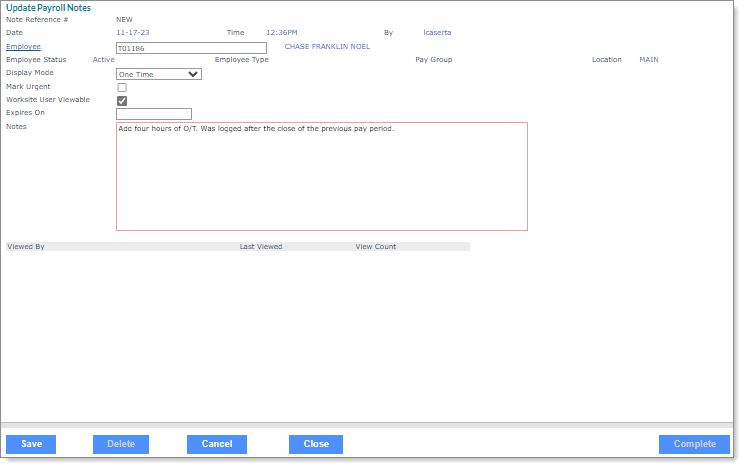
Note: To access the Update Payroll Notes form, select New Note in the Payroll Notes form, which displays on the Client|View menu. (For help using the read-only version of this form, Finalized Payroll Notes, see Working with Finalized Payroll Notes.)
To maintain notes:
|
1.
|
The Note Reference # displays the new or existing reference number generated by PrismHR. |
|
2.
|
The Date, Time, and By fields display the information for when the user created the note. |
|
3.
|
If this note applies to a specific employee, enter the Employee ID. If you do not enter an employee, the note applies to the client displayed in the top bar of the form. |
Note: To quickly search for an employee, start entering the name. After a few keystrokes, the system displays a list of employee names that match.
|
4.
|
The Employee Status, Employee Type, Pay Group, and Location of the selected employee display. |
|
5.
|
Select the Display Mode: |
|
•
|
One Payroll: Once the payroll processor acknowledges the note, it no longer displays. |
|
•
|
All Payrolls: The payroll processor must acknowledge the message each processing cycle. |
|
•
|
Scheduled Payrolls: The note displays only for scheduled payrolls. |
|
6.
|
Select Mark Urgent if this is an urgent note. |
|
7.
|
Select Worksite User Viewable to allow worksite managers and worksite trusted advisors to view the note. |
Note: The system automatically enables the Worksite User Viewable field after you select an employee. Therefore, you must disable this field to prevent worksite managers and worksite trusted advisors from viewing the note.
|
8.
|
Enter the date the note Expires On, if any. The note does not display after this date, even if it is set to display one time and no processor has acknowledged it. |
|
9.
|
Enter the payroll Notes. |
|
10.
|
If a user views the payroll note, that information displays in the table at the bottom of the form. |
|
11.
|
Click Save, or click Complete to close the note and remove it from the current payroll note list on the main Payroll Notes form. You can then review the note history at a later date. |
Note: After clicking Complete, you can only review the completed note on the Completed Payroll Notes form. (The information pertaining to who completed the note displays on that form.)
