This page has moved and will no longer be updated. To access the current page, click the Online Help  icon in PrismHR or navigate to the new help docs site and search for your topic.
Enabling Multi-Factor Authentication
Your organization can enable multi-factor authentication security at the system, client, or user level. After the number of days is specified in Authentication Services, affected users are prompted to request an authorization. This authentication applies to each device used to access PrismHR (computer, tablet, and so on).
Enabling System-Level MFA
Enabling MFA at the system level affects all service provider, worksite manager, and worksite trusted advisor users, and the period applies to all levels of authentication.
To enable MFA for the entire system:
|
1.
|
Open System Parameters (found in  under System|Change). under System|Change). |
|
2.
|
Select Authentication Services from the Actions menu  . . |
|
3.
|
Set the sMFA Device Expiration period. |
|
4.
|
Set the sMFA Device Expiration for Employee Portal period. |
|
5.
|
Set the sMFA Security Code Access method to Email (default) and/or SMS (text sent to mobile device). This determines where security codes are sent during the Account Access Confirmation process. |
|
•
|
SMS is enabled - It's enabled for all employees, service providers, managers, and trusted advisors. It cannot be enabled for individual users or clients. |
|
•
|
SMS destination - For service providers, managers, and trusted advisors: authorization codes are sent as a text message to the phone number saved in the Mobile Phone field on the Users form.
For employees: The phone number saved in Cell Phone on the Employee Details form (HR menu > Employee Details > Address tab) is used for text messages and authorization codes.
|
|
6.
|
Optional: Select IP Whitelist Skips sMFA. This feature applies only to PrismHRand not to EP. |
|
7.
|
Click Save in Authentication Services. |
|
8.
|
Click Save in System Parameters.
After enabling MFA, whenever a service provider, worksite manager, or worksite trusted advisor logs into PrismHR, the Account Access Confirmation dialog displays:
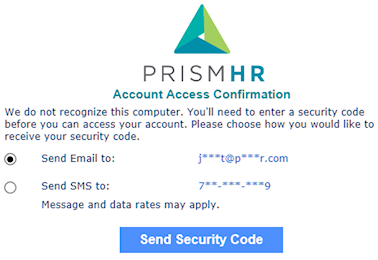
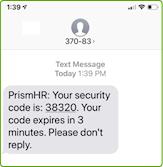
After enabling Send SMS to, a generic message displays stating that the user will receive the security code via email. However, the code is actually sent as a text message. Once the user requests the security code, this message (or a similar one) displays:
|
Enabling Client-Level MFA
Enabling MFA at the client level can affect all service providers, worksite managers, and worksite trusted advisors associated with the client.
To enable client-level MFA:
|
1.
|
Select the client to enable MFA. |
|
2.
|
Open Client Details (found in the menu under Client|Change). |
|
3.
|
Select Security from the
Actions menu. |
|
4.
|
Set security options (under Access) as needed:
|
| Option |
Description |
| sMFA Device Expiration
|
Use the global setting, a different interval period from the global setting, or disable MFA for this client.
When enabled, all users associated with this client who access the system will need to re‑authenticate their access after the specified time interval, if any, for each device they use. The system prompts them to request an authentication code, which it sends to the user's specified email address. The user can then enter the authentication code to regain system access.
|
| MFA Expiration for Employee Portal
|
Use the global setting, a different interval period from the global setting, or disable Employee Portal (EP)MFA for this client.
When enabled, all users associated with this client who access EP will need to re‑authenticate their access after the specified time interval, if any, for each device they use. The system prompts them to request an authentication code, which it sends to the user's specified email address. The user can then enter the authentication code to regain EP system access.
|
|
Note: To implement MFA, your organization must set up a message template for MFA Passcode.
|
| sMFA Enabled for Trusted Advisor Password Reset
|
Enable MFA for all worksite trusted advisors who have access to the client, requiring them to use MFA when the Forgot Password link is clicked.
|
|
5.
|
Click Accept in the Client Security form. |
|
6.
|
Click Save in the Client Details form. |
Enabling User-Level MFA
Enabling MFA at the user level only affects each specified user. At the user level, MFA settings apply to both PrismHR and EP.
To enable user-level MFA:
|
1.
|
Click and open the Users form under System|Change. |
|
2.
|
Enter the User ID for a service provider, worksite manager, or worksite trusted advisor user. |
|
3.
|
Set sMFA Device Expiration to use the global setting, a different interval period from the global or client setting, or disable MFA for this user.
When enabled, the user will need to re‑authenticate their access after the specified time interval, if any, for each device they use. The system prompts them to request an authentication code, which it sends to the user's specified email address. The user can then enter the authentication code to regain system access. |
