Adjusting W/C Billing Modifiers
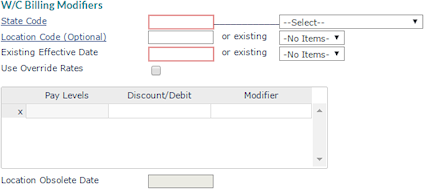
You can adjust worker's compensation rates to bill the client with the W/C Billing Modifiers form. The amount billed is based on a percentage of the gross rate. The system keeps a history of discount and modifier data that you can view by selecting the date.
Importing a Workers' Compensation Template File
Clicking the Import button  displays the Data Import Tool form, which allows you to import a W/C Billing Modifiers template file that contains the following fields (this file must be in .txt format):
|
•
|
Effective Date (Required) |
|
•
|
Use Override Rates? (Required) |
Note: The Import button displays on the W/C Billing Modifiers form for all user roles except the "Deny" and "Inquiry-only" roles. Imports can be performed for multiple clients at the operations level. For more information about the Data Import Tool form, refer to the PrismHR Payroll Administration Guide.
To adjust rates, do the following:
|
2.
|
From Client|Change, select W/C Billing Modifiers.
 |
|
3.
|
Fill in the required information in these fields.
|
| Field |
Description |
| State Code |
Enter a two-character state code, or select it from the drop-down. |
| Location Code |
If the rate applies to a specific location for this client, enter the Location Code or select an existing location billing modifier record.
|
| Effective Date |
Enter a new Effective Date or select an existing effective date.
|
| Use Override Rates |
Select Use Override Rates to calculate the billing amount using the override rates. Otherwise, the system uses the Discount/Debit and Modifier values. |
| Pay Levels |
For each of the client's Pay Levels established in the billing rules for the client, enter the rates for the selected state:
|
•
|
Enter the employer's Discount/Debit rate. |
|
•
|
Enter the employer's Modifier rate. |
|
| Location Obsolete Date |
If this billing modifier is for a location that is closing, enter the Location Obsolete Date. This is the last pay date to use this billing modifier. |
Using Override Rates Option
You can charge the client a different rate per workers’ compensation classification if you select Use Override Rates.
To enter billing rates in the Overrides panel, do the following (make sure you define a billing rate for each of the classifications used by the client):
|
2.
|
From Client|Change, select W/C Billing Modifiers and select the Use Override Rates checkbox.
 |
|
3.
|
Enter the required information in these fields for each W/C classification code used by the client:
|
|
Field
|
Description
|
|
W/C Class Code
|
Enter or select each W/C classification code.
If you select the W/C Class Code field, you can search for a class code using the WC Class Code or Description field in the Select WC Class Codes list.
Note: After you enter or select the codes and save them, the system alphabetizes the list.
|
|
Billing Rate
|
Enter the Billing Rate. This is the rate per hundred dollars in wages or per hour worked (depending on the state) used to calculate the bill amount to the client for this W/C classification.
|
|
Bill on Wages or Hours
|
Select whether to Bill on Wages or Hours. The standard is wages unless the state specifies that the rate is based on hours.
|
|
Accrual Rate
|
Enter the Accrual Rate. This is the rate per hundred dollars in wages or per hour worked (depending on the state) used to calculate the accrual amount to the client for this W/C classification.
|
 Contact