Defining State Tax Bill Rates (SUTA)
Define a client’s SUTA billing rates with the State Tax Bill Rates (SUTA) form.
Note the following:
|
•
|
SUTA is based on an employee's home location and is specified by the location code in the Employee Details. Entering hours for a different state does not trigger the SUTA for that state. |
|
•
|
You cannot have multiple SUTA states in a single payroll. If an employee worked in multiple states for a single payroll and you need to calculate SUTA for each state, you must run a separate payroll to process hours for each state the employee worked in. For each of these payrolls, you must change the employee's home location in Employee Details before processing. |
Setting a Location for State Tax Bill Rates
Set a location to which a state tax bill rate applies with the State Tax Bill Rates (SUTA) panel.
To set location:
|
2.
|
From Client|Change, select State Tax Bill Rates (SUTA).
 |
|
3.
|
Fill in the required information in these fields.
|
| State Code |
Enter a two-character state code, or select it from the drop-down. The Client State ID displays.
|
|
Location Code (Optional)
|
Enter or select the Location Code where the billing rate applies. Leave this field blank if the billing rate applies to all client locations in the state.
|
| Effective Date |
Enter a date when the bill rate goes into effect, or select an existing date to edit. |
Setting SUTA Bill Rate Information
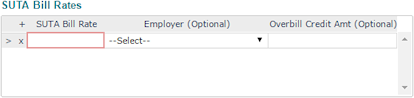
Set SUTA bill rate information with he SUTA Bill Rates panel. If the client has multiple employers, you can establish rates for each employer.
To set SUTA bill rate information:
|
2.
|
From Client|Change, select State Tax Bill Rates (SUTA) to view the SUTA Bill Rates panel.
 |
|
3.
|
Fill in the required information in these fields.
|
| SUTA Bill Rate |
Enter at least one SUTA Bill Rate for the state that applies to the client. |
| Employer |
If appropriate, select the Employer to which this SUTA bill rate applies. To specify a different billing rate for different employers, enter that information on different rows. Otherwise, do not select an employer. |
| Overbill Credit Amt (Optional) |
Enter the Overbill Credit Amt back rate only if it is different from the SUTA bill rate. |
Establishing Officer and State Bill Rates
Set officer and state bill rates with the Other Billing Rates panel.
To set these rates:
|
2.
|
From Client|Change, select State Tax Rates (SUTA) to view Other Billing Setup.
|
|
3.
|
Fill in the required information in these fields.
|
| Field |
Description |
| Officer SUTA Rate |
Enter the Officer SUTA Rate, if it is different for officers. |
| SDI Rate |
Enter the employer's SDI Rate if the employer pays disability insurance in this state. |
| Miscellaneous override rates |
Enter the miscellaneous override rates for employer-paid taxes. If you leave any of these fields blank, the system uses the default rate.
|
•
|
Enter the State Misc1 Rate (Tax ID 26). |
|
•
|
Enter the State Misc2 Rate (Tax ID 28). |
|
•
|
Enter the State Misc3 Rate to set employer tax rates for tax codes 22-41 (Massachusetts) and 48-41 (Washington). |
|
•
|
Enter the State Misc4 Rate to set employer tax rates for tax codes 24-54 (Minnesota). |
|
| Location Rate Obsolete Date |
If this rate is for a specific location that is closing, and the code is no longer used in calculations, enter the last active pay date in the Location Rate Obsolete Date field. |
| Overbill CR Bill Code (Optional) |
Enter the Overbill CR Bill Code to use for credit backs for SUTA overlimit credits instead of the default. |
|
Wage Base Override
|
Enter the Wage Base Override if you want to use a different amount than that specified in the Vertex guide. For example, Michigan has two tiers based on experience.
|
|
Lock Down Employer
|
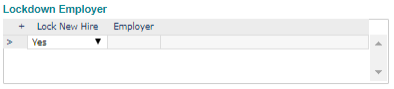
Select Lock Down Employer to "lock down" the employees working in this state to one of the employer IDs entered in the SUTA Bill Rates panel. This lock goes into effect during payroll calculation and new hire/rehire. Use the Lockdown Employer panel.
|
Selecting Relevant Employers
Choose the relevant employers from the Lockdown Employer panel if Lock Down Employer is selected.
To select relevant employers:
|
2.
|
From Client|Change, select State Tax Rates (SUTA) to view Other Billing Setup. |
|
3.
|
Select Lock Down Employer to view the Lockdown Employer panel.
 |
|
4.
|
Select Yes from the Lock New Hire drop-down to lock new or rehired personnel working in this state to the employer. |
Importing SUTA Billing Rates Data
You can access the State Tax Bill Rates (SUTA) import template in the Data Import Tool from this form to import SUTA billing rates data by clicking Import .
.
The State Tax Bill Rates (SUTA) import template option and its tabs/fields automatically display when you access this template directly from the State Tax Bill Rates (SUTA) form.
Note: You can also navigate directly to the Data Import Tool by clicking  (Back Office), then select Data Import Tool on the Operations|Import Processing menu. In the Data Import Tool form, select the State Tax Bill Rates (SUTA) import template option.
Note the following when importing State Tax Bill Rates (SUTA) data:
|
•
|
Importing only creates/adds new entries and does not edit or update existing state tax bill rate entries. |
|
•
|
If you try to import a record with the exact same state code and effective date combination as an existing record the following message displays, "A record already exists for Client <Client ID> for <state code> with an effective date of <effective date>. Updates to existing records should be done on the State Tax Bill Rates (SUTA) form." |
|
•
|
You can import at the operations level for single clients or for multiple clients at once. |
|
•
|
Users whose user role is set to DENY for the State Tax Bill Rates (SUTA) form cannot import data using the State Tax Bill Rates (SUTA) import template and subsequently, the Data Import Tool icon will not display on this form. |
|
•
|
Users whose user role is set to FULL or INQUIRY for the State Tax Bill Rates (SUTA) form, but whose user role is also set to DENY for the Data Import Tool cannot view the Import icon on the State Tax Bill Rates (SUTA) form. |
|
•
|
Users whose user role is set to INQUIRY for the State Tax Bill Rates (SUTA) form can view the State Tax Bill Rates (SUTA) import template, but cannot import data. |
|
•
|
Users whose user role is set to INQUIRY for the Data Import Tool can view the form and import template options, but cannot import data. |
|
•
|
Users who do not have access to a particular company through client access groups are unable to import data into that company. |
