| Billing Rule |
Enter or select an existing Billing Rule ID, or click New Rule to create a new unbundled billing rule. The system automatically assigns an ID. |
| Rule Description |
Enter a Rule Description. |
| Rate |
Enter the billing Rate. The system uses this in conjunction with the Based On value. |
| Based On |
Select a Based On value, which represents the logic to use when calculating the rate.
For more information about "based on" options, see Using Unbundled Bill Rules Based On Options.
|
|
Use Timesheet Location Or State
|
Only displays for rules based on Percent of Wages or Percent of WorkerComp Billed. If enabled, the billing rule targets the location or state billed on the time sheet.
|
| Rule Start Date/Rule End Date |
If the rule only applies during a specific date range:
|
•
|
Enter the Rule Start Date when this rule begins. |
|
•
|
Enter the Rule End Date when this rule ends. |
|
| Voucher Types |
Select the Voucher Types to which a billing rule applies.
|
| Employee |
If the billing rule applies to a single employee, enter the Employee ID. If the billing rule applies to all employees who do not have another billing rule assigned to them, leave this field blank. |
| Batch Type |
Select the Batch Type to which this billing rule applies. |
|
Employee Type
|
Select the Employee Type to which this billing rule applies, if any. For example, FT is a full time employee.
|
| Pay Group |
Select the Pay Group to which this billing rule applies, if any. For example, W is a weekly pay group. |
| Deduction Period |
Enter the Deduction Period number (1 through 5) to which this billing rule applies, if any. If employees are paid during this period, the system assesses a fee. If you enter a Deduction Period, you must also enter a Pay Group unless Based On is set to Flat Amount / Benefit Plan Class. |
| Position |
Enter the Position to restrict the billing rule to one position. For example, SALES is a position type. |
|
Obsolete
|
Enable this field to set the selected Billing Rule as obsolete. (The default is disabled.)
|
|
Obsolete Date
|
Enter or select the date when the Billing Rule becomes obsolete. (If you enable the Obsolete field and do not enter or select the Obsolete Date, the system automatically defaults to the current date.)
|
| Pay Period |
Select the Pay Period to which this rule applies. If it applies to all periods, do not make a selection. |
| Home Location Code |
Enter a Home Location Code to limit the application of this unbundled billing rule to that location. If the rule applies to all locations by default, enter DEFAULT-ALL.
Using DEFAULT-ALL for a billing rule allows locations to have “by exception” logic. For example, you could have a rule where all locations are charged $100 except for the CORP location, which is charged $40. In that case, you would create two billing rules: one with the DEFAULT-ALL location code and one with the CORP location code.
|
| Special Rate |
Enter the Special Rate in effect for a specified period. The system uses this value instead of the standard rate.
Note: You cannot enter a special rate for Per Active Employee Per Month (PAEPM) rules.
|
| Special Rate Start/Special Rate End |
If the special rate only applies during a specific period:
|
•
|
Enter the Special Rate Start date when the special rate goes into effect. |
|
•
|
Enter the Special Rate End date when the special rate ends. |
Note: You cannot enter a special rate start/end date for Per Active Employee Per Month (PAEPM) rules.
|
| Billing Code |
Enter the Billing Code the system uses. Typically, this is 006, but you can assign another code to use instead of this standard administration fee. |
| Benefit Plan |
Enter the Benefit Plan to use when calculating an administrative fee. This field only impacts calculations when the rule’s Based On field is set to Percent of Listed Benefit or Percent of Listed Benefit Net Billed to Client. |
|
Optional Fields
|
|
Benefit Plan Class
|
This field is only active when Based On is set to Flat Amount / Benefit Plan Class. Select one of the classifications used for group benefit plans or select Retirement. The system charges the amount once if an employee has any plans in that class (unless the group benefit plan is set to suppress flat billing by plan type). If there is a benefit adjustment in addition to the regular plan, the billing rule is applied only once. If the pay voucher has only benefit adjustments, then the billing rule applies once.
|
|
Benefit Plan Types
|
You can only specify benefit plan types on which to charge fees when Based On is set to Percent of Listed Benefit, Percent of Listed Benefit Net Billed to Client, or Flat Amount based on Benefit Rule.
Select each Benefit Plan Type Equal To for which you bill an administrative fee surcharge, or select each Benefit Plan Type Not Equal To for which you do not bill an administrative fee surcharge.
|
|
Pay Class Equal To/
Pay Class Not Equal To
|
If the billing rule applies to only a few pay classes, list them in the Pay Class Equal To table. If there are only a few exceptions, use the Pay Class Not Equal To table instead. If the billing rule covers all pay classes, leave both tables empty. For example, set Pay Class Not Equal ToExpense Reimbursement when you do not want to calculate Admin Fee as a percentage of wages on non-taxable wages.
Important! When listing the Pay Class, note that they are only valid when using the following Based On options:
|
•
|
Amt per Check (One Per Voucher will Fire) |
|
•
|
Flat Amount / Paid EE (only once per EE) |
|
•
|
Flat Amount / Benefit Plan Class |
|
•
|
Monthly Rate/52 weeks =\ Only One of these |
|
•
|
Monthly Rate/48 weeks =/ Per Voucher will Fire |
|
•
|
Percent of Retirement Match Amount |
|
•
|
Percent to Not Shelter Benefit plan from FICA |
|
•
|
Percent of WorkerComp Billed |
|
•
|
Percent of FUTA Wages Billed |
|
•
|
Percent of SUTA Wages Billed |
|
•
|
Tax-Code Based Rule (Rate(s) on sub screen) |
|
•
|
Tiered Cumulative Per Employee Per Pay Period |
|
•
|
Tiered Per Employee Per Pay Period |
|
|
Pay Code Equal To/
Pay Code Not Equal To
|
If the billing rule applies to only a few pay codes, list them in the Pay Code Equal To table. If there are a few pay code exceptions, use the Pay Code Not Equal To table to list the pay codes not covered by this billing rule. If the billing rule covers all pay codes, leave both tables empty.
Important! When listing the Pay Code, note that they are only valid when using the following Based On options:
|
•
|
Amt per Check (One Per Voucher will Fire) |
|
•
|
Flat Amount / Paid EE (only once per EE) |
|
•
|
Flat Amount / Benefit Plan Class |
|
•
|
Monthly Rate/52 weeks =\ Only One of these |
|
•
|
Monthly Rate/48 weeks =/ Per Voucher will Fire |
|
•
|
Percent of Retirement Match Amount |
|
•
|
Percent to Not Shelter Benefit plan from FICA |
|
•
|
Percent of WorkerComp Billed |
|
•
|
Percent of FUTA Wages Billed |
|
•
|
Percent of SUTA Wages Billed |
|
•
|
Tax-Code Based Rule (Rate(s) on sub screen) |
|
•
|
Tiered Cumulative Per Employee Per Pay Period |
|
•
|
Tiered Per Employee Per Pay Period |
|
 icon in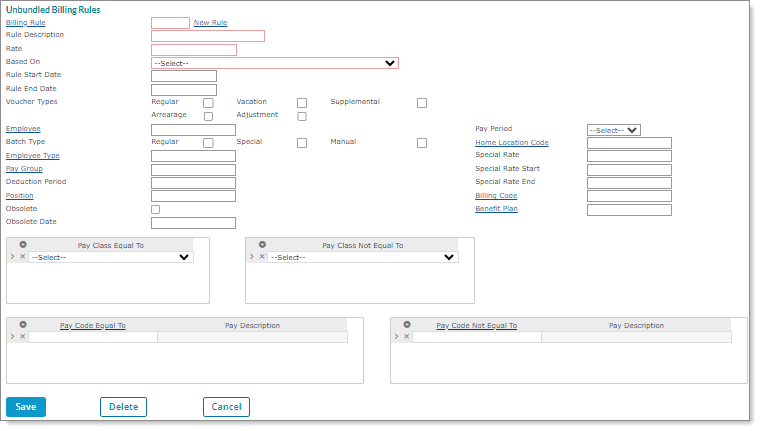
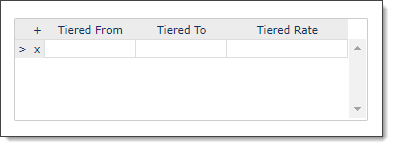
 )
)