 icon in
 Running the ACA Eligibility Report
Note: Client Access Group Security is enabled on this form.
Note: This form supports entity-level security for Worksite Managers and Worksite Trusted Advisors, as defined on the Users > Actions > Data Security form.
The Eligibility Reports indicate employee eligibility for health care coverage under the ACA.
Eligibility is based on employee hours worked over a certain measurement period. You can establish this period at the global level and override it at the client level, if necessary. For more information about these setup parameters, see the topics on global and client-level period setup:
| • | Configuring Global ACA Parameters |
| • | Configuring Client ACA Parameters |
You can run the Eligibility Report for either current employees or new hires. The period information comes from the Period Setup section of the Client ACA Parameters. If that information is not defined, the Period Setup values come from the system-level ACA parameters.
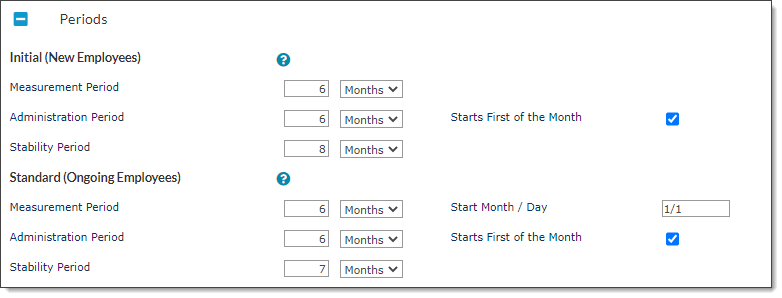
The following example of the global Periods panel includes sections for new employees and ongoing employees. These correspond to the two types of ACA eligibility report you can run.
Before You Begin
You can specify certain leave status codes to include on the report, even if the report would not normally include those employees: use the Leave Status Codes Overrides for ACA Coverage Report form to do this. See Including Leave Status Codes on the Eligibility Report for details.
About the Start and End Date Fields
When setting up this report, you must enter a Start Date and End Date. The system uses this date range to select any employees who had a measurement period during this time. These dates can be up to one (non-calendar) year apart.
The report logic is different based on whether you run the report for new hires or for ongoing employees.
New Hire Report
The new hire report selects employees using the report start and end dates, in conjunction with the New Hire Measurement Period in the global or client ACA settings.
For example, if you run the report for new hires with a start date of 9/15/2026 and an end date of 10/15/2026, and the New Hire Measurement Period is 9 months, then for all clients on the report the system will include employees who were hired between 12/16 of the previous year and 1/16/2026 (notice that this range is 9 months before the entered dates).
Note the following:
| • | This measurement start date is specific to this report. Each employee has a different measurement start based on their effective hire date. |
| • | To select vouchers, the system uses the date that comes 31 days after the End Date. |
| • | There is nothing in the client or global Period settings that affects the validity of the start and end dates you enter for this report. |
Ongoing Employee Report
For the ongoing report, the system uses the year passed in the report start and end date fields. The month and day must be within the range from the Start Month/Day specified for the ongoing period.
For example, if you enter 1/1/2026 and the start for the period is January 1, then the measurement start date for the report will be 1/1/2026. If the Ongoing Measurement Period is 6 Months, then the measurement end date will be 6/1/2026.
| • | Like the new hire report, this report selects vouchers based on the date that comes 31 days after the specified End Date. |
| • | The Start Date must be before, or the same as, the Measurement End Date. |
| • | The End Date must be the same as, or after, the Measurement End Date. |
| • | If these dates are not correct, the report will not be generated for the client. |
Procedure
To run this report:
| 1. | Go to the Work Centers menu. |
| 2. | Under Work Centers|Compliance, select ACA Processing. |
| 3. | From the ACA Reporting column, select ACA Eligibility Report. |
Worksite Managers and Worksite Trusted Advisors can access this report through Reports > HR | Report > ACA Eligibility Report.
| 4. | Do one of the following: |
| • | To enter individual clients, enter each client that you want to include in the report in the Client ID field. |
| • | To include all clients in the report, leave the Client ID field blank. (Later, when you click Generate Report, a confirmation message displays asking you to confirm whether you want to run the report for all clients. Select Yes to continue.) |
| 5. | Enter the Report Start Date and Report End Date. The date range cannot be greater than a year. |
The employees included in the report are those who have a measurement period that ends between these dates. See the previous section for details about this logic.
| 6. | Select Large Employer to include only large employers in the report. Otherwise, the report includes all clients. |
Note: If you select the Large Employer field, you must also enter the Large Employer Year. If a client was not a large employer in that year, the report does not include it.
| 7. | In the Include in Report panel, select one of the following options: |
| • | All Employee Types and Classes – this is the default option. |
| • | Employee Type – in the look-up field that displays, select any employee types you want to include on the report. |
| • | Employee Type Classification – in the field that displays, select whether you want to include Full-Time, Part-Time, or all employee type classes. |
| 8. | In the Report Type field, select whether you want to run the New Hire or Ongoing employee report. The default is Ongoing. |
See the previous and next sections for more details about the differences between these two reports.
| 9. | Click Generate Report to run the report. |
| 10. | After the report generates, click Download Summary Report to obtain the report download. |
Interpreting the Eligibility Report Output
Use this section to better understand the output of the eligibility report.
"Number of Weeks" and Week End Dates
| • | Weeks run from Sunday through Saturday, except the first and last weeks in the measurement period. |
| • | The first week starts on the measurement period start date, and ends on the following Saturday. |
| • | The last week starts on Sunday and ends on the last day in the measurement period. |
| • | The number of weeks in the report is based on the measurement periods, as well as the Start Date and End Date from the report setup parameters. |
| • | The Number of Weeks count is the number of days in the measurement period divided by seven. It is not the total number of weeks for all employees on the report. |
Employee-level "Number of Weeks" and Hours
| • | Report hours accumulate for each employee, in each week in the measurement period. |
| • | When assigning hours to a particular week, the system uses the charge date on the employee time sheet to select that week. |
| • | If the hours do not have an associated charge date, then the system uses the Pay Period End date for the voucher. |
| • | If there are no hours for a certain week within the employee measurement period, the report still uses that week when it calculates the average. |
Calculating Hours
| • | If the pay code Calculation Method is Standard and the Pay Reason is Hourly, then the report counts the number of Hours Paid. Otherwise, it counts the Hours Worked. |
| • | If a pay code is set to be excluded from ACA hours calculation, the report does not include those hours in the report. |
| • | You can also import external hours into the system. The report will include these hours. |
Review the following table for descriptions of other values in the report:
|
Column |
Description |
||||||||||||||||||
|---|---|---|---|---|---|---|---|---|---|---|---|---|---|---|---|---|---|---|---|
|
Employee Total Hours |
The total of all hours for every week in the employee measurement period. |
||||||||||||||||||
|
Average Hours |
Total employee hours divided by the number of weeks in the employee measurement period. |
||||||||||||||||||
|
Valid Leave Days |
If an employee was on valid leave during the reporting period, the report totals the number of leave days. The number of days in the report is weighted against the number of days of valid leave. This factor is used to adjust the full-time employment (FTE) requirements for the employee. |
||||||||||||||||||
|
FTE Flag |
If the employee worked an average of 30 hours per week, this flag is set to Y, otherwise it is set to N. If valid leave days affected this calculation, an asterisk also displays (*Y or *N), and the report includes a footnote with an explanation. |
||||||||||||||||||
|
Health Coverage |
The report checks for all medical benefits plans. If the employee is actively enrolled in a medical benefit plan with a coverage start date before the end of the measurement period, this is set to Y, otherwise it is N. If an employee is actively enrolled in any medical benefit plan, then Waived is set to N. |
||||||||||||||||||
|
Waived |
If an employee:
this column displays a Y. |
||||||||||||||||||
|
Break in Service |
A break in service is a period when the employee is not active. The Break in Service Term is usually 13 weeks unless otherwise specified in the client-level ACA Period setup. Valid leave days are counted as active and are not treated as a break in service. The report uses the last hire date for all employees when determining a break in service:
If a break in service with the allowed weeks occurs during an employee measurement period, a double asterisk displays in front of the employee status class (for example, **A) and the report includes an explanatory footnote. |
More Information About the Dates on the Eligibility Report
On both reports
| • | The Effective Hire Date is the last employee hire date, based on the hire date in the employee record and the break in service logic. |
| • | If Period setup requires that the administration period start on the first of the month, the measurement end date is extended to the last day of the month when it is calculated. |
| • | Both reports select employee vouchers by employee ID, then by client, and finally by the period end date on the voucher. |
| • | To select vouchers, both reports use the date 31 days after your entered End Date. The system processes the hours in the voucher based on the charge date or — if a charge date is not used — based on the voucher period end date. These settings ensure that the system processes all charge dates. |
| • | Both reports use the charge data associated with the hours from the voucher (or the voucher period if there is no charge date associated with the hours) to determine the week within the measurement period. The reports then accumulate the hours in that week. |
| • | If the voucher hours date is outside the employee measurement period, the reports do not include those hours. |
On the new hire report
On the New Hire report, all start and end dates vary based the employee effective hire date.
|
Date |
Description |
|---|---|
|
Measurement Start Date |
The employee effective hire date. The starting date to include in the report is the Start Date that you entered minus the number of days or months in the New Hire Measurement Period fields, defined in the client or global Period Setup. |
|
Measurement End Date |
The last day of the employee measurement period based on the effective hire date and the New Hire Measurement Period fields, defined in the client or global Period Setup. |
|
Admin Start Date |
The day after the Measurement End Date. If this day must be the first of the month, the Measurement End Date is extended to the last day of the previous month. |
|
Admin End Date |
Based on the Admin Start Date and the New Hire Administration Period fields in Period Setup. |
|
Stability Start Date |
The day after the Admin End Date. |
|
Stability End Date |
Based on the Stability Start Date and the New Hire Stability Period fields in Period Setup. |
On the ongoing employee report
On the Ongoing report, all start and end dates will be the same for all employees. These dates are based on the criteria in Period Setup and the year for the Start Date you entered.
|
Date |
Description |
|---|---|
|
Measurement Start Date |
Based on the Start Month/Day in Period Setup and the Start Date you entered when you ran the report. |
|
Measurement End Date |
The last day of the employee’s measurement period, based on the Measurement Start Date and the Ongoing Measurement Period fields in Period Setup. |
|
Admin Start Date |
The day after the Measurement End Date. If this day must be the first of the month, the Measurement End Date is extended to the last day of the previous month. |
|
Admin End Date |
Based on the Admin Start Date and the Ongoing Administration Period fields in Period Setup. |
|
Stability Start Date |
The day after the Admin End Date. |
|
Stability End Date |
Based on the Stability Start Date and the Ongoing Stability Period fields in Period Setup. |
